Get All Tendering Tools in
One Place
Everything you need to find, track and manage public sector tender opportunities -
from search through to submission.

With work to deliver and bids to write, daily portal checks are often the first thing to slip. A saved search does that checking for you, then sends new matches to your inbox.
 Save any search in one click
As many saved searches as you need
Location and value limits on every search
Pause, edit or delete alerts at any time
14-day free trial. No payment today.

If any of these sound like your week, a saved search was built for you.

You open the same portals, type the same keywords and scroll the same lists. Most days, all that effort turns up nothing new. Save the search once, and Tenderbase keeps running it for you.

In your busiest week, there's no time to check for new tenders. That's exactly when the one that suited you opens and closes unseen. Email alerts flag new matches as they're published, so a busy week no longer means a missed tender.

A tender three counties away. A contract ten times your size. Results like these bury the work you'd actually bid for. Value and location limits filter them out, so every alert is a contract you could take on.

When you're already stretched, every new alert adds pressure. Rather than ignoring them, pause your alerts with one click. Then switch them back on when you're ready for more work.
It takes one search and a single click. After that, Tenderbase keeps watching for you.
 Step 1
Start with the keywords, location, deadline and value that suit your business. If you'd rather not set filters, describe the work in plain English with AI tender search.
 Step 2
When the results look right, save that exact search in one click. From then on, you won't need to enter those filters again.
 Step 3
Tenderbase checks each new tender against your saved filters. When one matches, an email lands in your inbox.
 Step 4
Your saved searches can change as your business does. Edit the keywords when you add a service, pause alerts in busy spells or delete a search you've outgrown.
Mix these settings to build alerts around the way you bid.
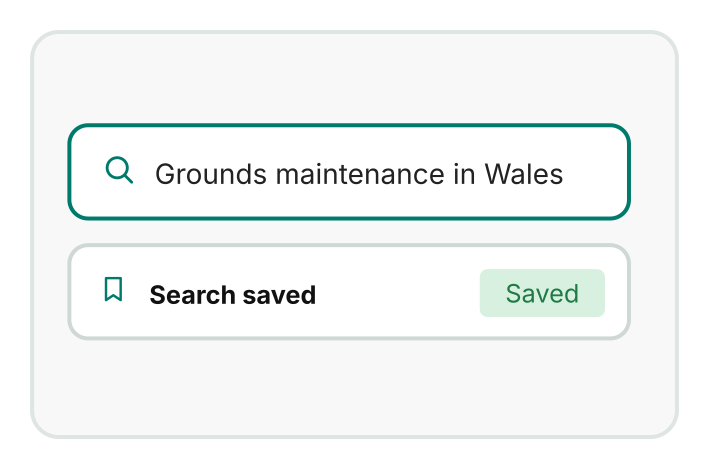
Whether you search by keyword, location or deadline, one click saves that exact search. It then stays in your list, ready to reopen whenever you need it.
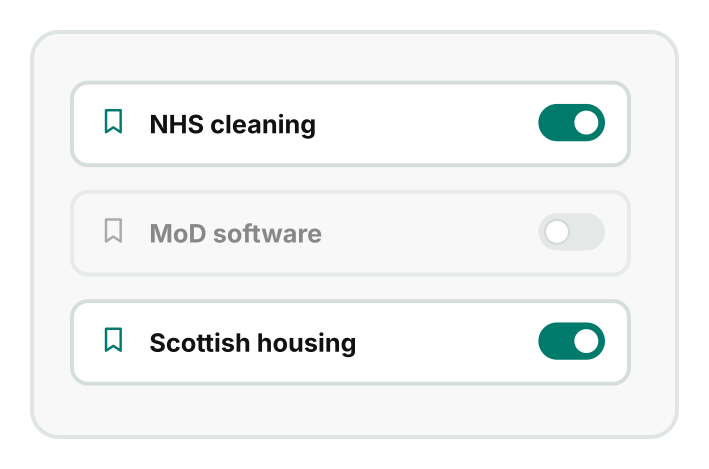
There's no limit on how many searches you save, so each one can have its own focus. Set one for council contracts, another for high-value work and one for each service.
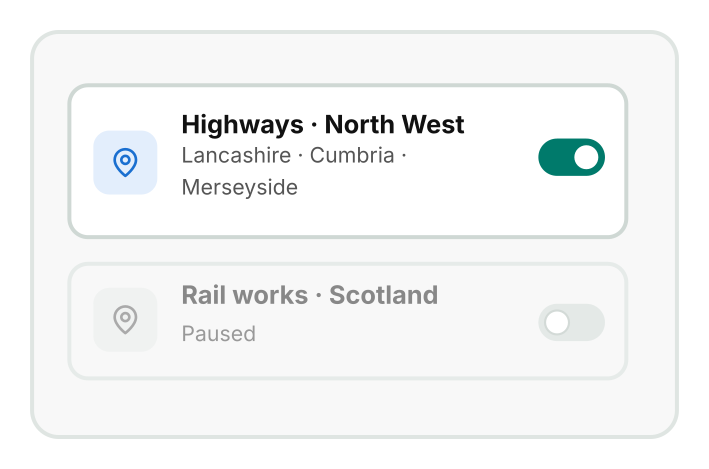
Save searches by region, by city or around your business. That way, every alert comes from an area you actually cover.
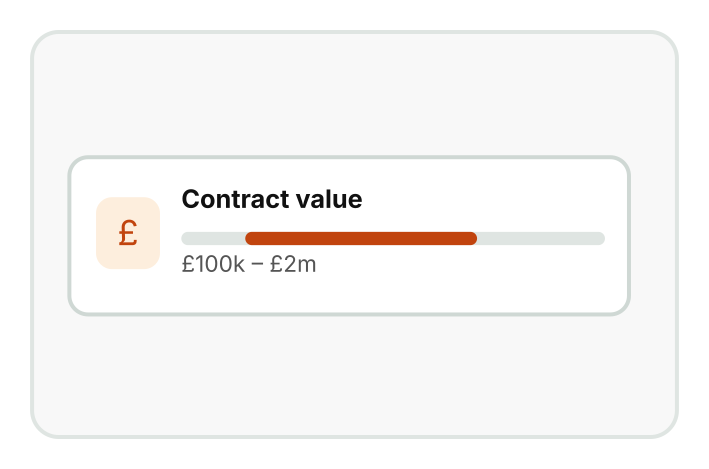
Set a minimum and maximum value for each search. Anything too small or too large for your business then stays out of your alerts.
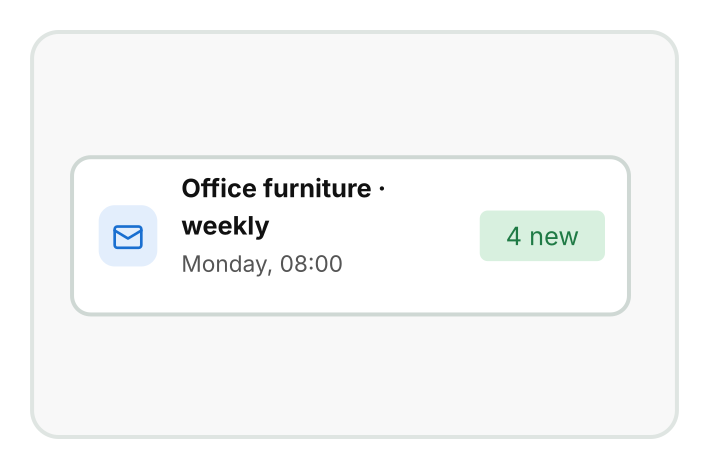
Each saved search can email you when a new tender matches. So you'll often know about it before you've even logged in.
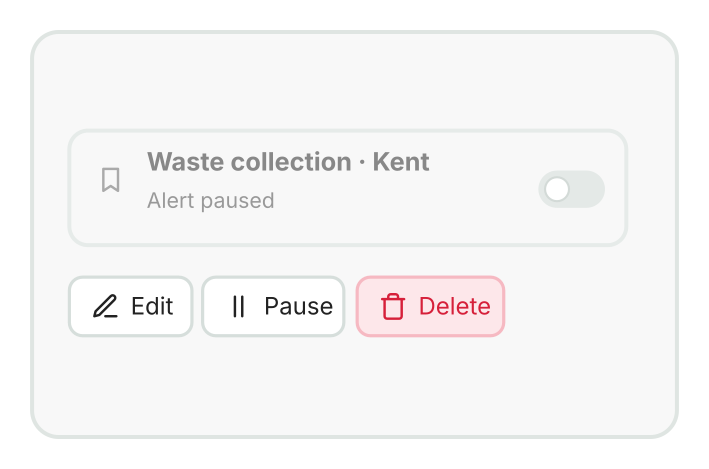
All your searches and alerts sit on one screen. From there, you can pause, restart, edit or delete any of them with a click.
Saved searches keep new tenders coming your way. These tools help you judge them and plan ahead.

Describe what you need in one plain English sentence. Then save that search, and it keeps running for you.
Explore Advanced AI Tender Search

Every tender your searches find carries a match badge. That badge tells you which one to open first.
See how tender scoring works

Follow early notices and renewals before they're published. Spotting them early leaves you time to plan the work.
Track PINs and renewals

Rather not build searches at all? Then let your business profile bring matching tenders to you.
Explore the Tender Alert Service
Everything you need to find, track and manage public sector tender opportunities -
from search through to submission.
Quick Links
Tender Search
Important Information
Get to know more about our latest features.
Social Links :